Many players read the briefing on a phone: on the way home, between matches, or with the game running on the main screen. A plan built on a big monitor often fails there. The map is too small to read, the text runs long, and the image in Discord is a thumbnail.
The checklist
Before the op
- One link, pinned where your unit reads, such as the op channel in Discord. Not five images in a row.
- It opens without an account or an app. Every sign-in screen loses people.
- The mission is the first thing they read, in one sentence.
- Short paragraphs with headings, one screen each. Situation, Mission, Execution, Sustainment, Command and signal.
- The map shows the op area, not the whole map. Zoom to where the fighting happens.
- Few symbols, short labels. 1PLT, OBJ BARN, PL RED. If you need more than about a dozen on screen, split the plan into phases or layers.
- Grid references in the text for every place that matters, so people can find it in game.
- Open it on your own phone, in portrait, on mobile data. Can you read every label without zooming?
- Post it early enough for questions, the evening before for a planned op.
During the briefing
- Walk through the order top to bottom on the voice call while people follow on their phones.
- Say grids and code words out loud, and point to each place on the shared map.
- Ask each element leader to repeat their task in one sentence.
When the plan changes
- Change the plan behind the same link, so nobody briefs from an old version.
- Post one line saying what changed, such as "2PLT now attacks from the north".
- Have a copy that works without signal for anyone who plays somewhere with poor reception.
How TacOps does this step
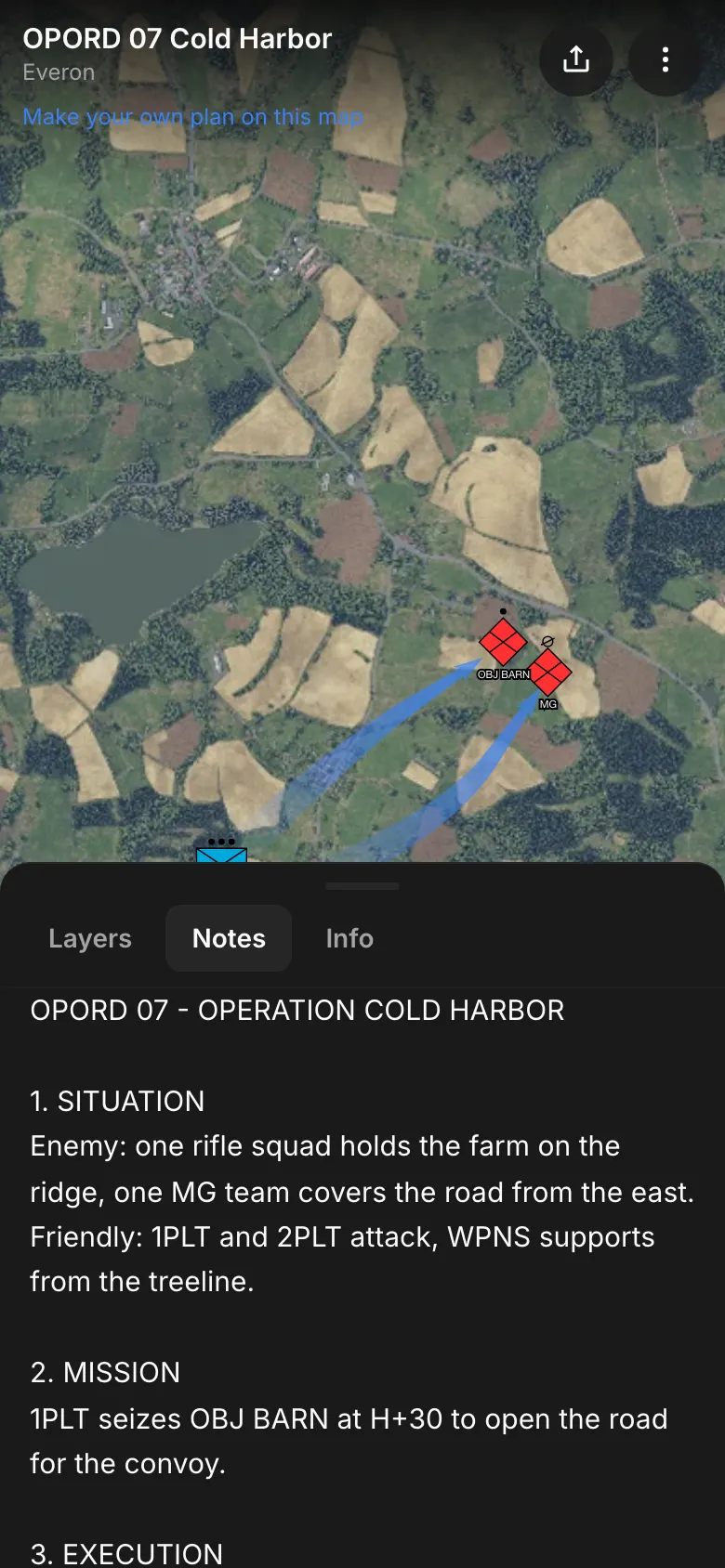
A TacOps plan shares as one link. A read-only link opens in the phone's browser with no account and no app. On a phone, the map fills the screen and a sheet at the bottom holds the plan's layers, its notes, and its info, so people can switch between the order and the map with one tap. Tapping a symbol shows what it is: its side, its size, and its layer. The share panel also shows a QR code, so people can scan the link off your screen during a briefing. When the plan changes, you edit it and the link stays the same. If the host is on Pro, viewers can save the plan for offline use.
More guides: how to write an op order, NATO map symbols explained, and how to brief on a phone.